VisionAery

    Built for Axis ACAP

    Liquid Leak Detection on Axis ARTPEC-9

    VisionAery Liquid Leak Detection on the Axis ARTPEC-9 platform is a signed app that runs on any ARTPEC-9 camera and can be licensed and managed through Axis platforms.

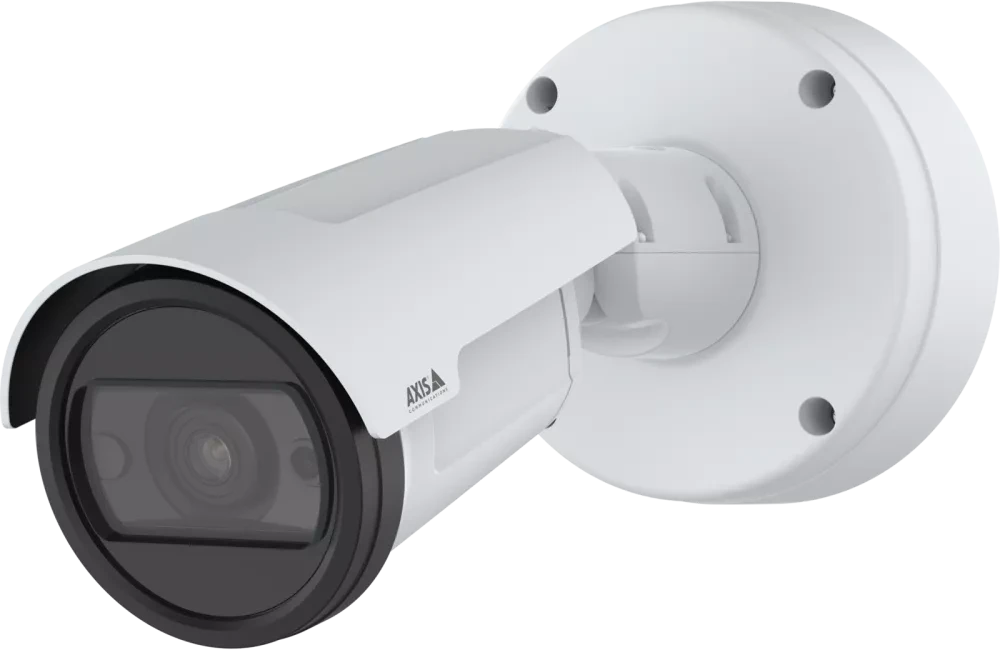
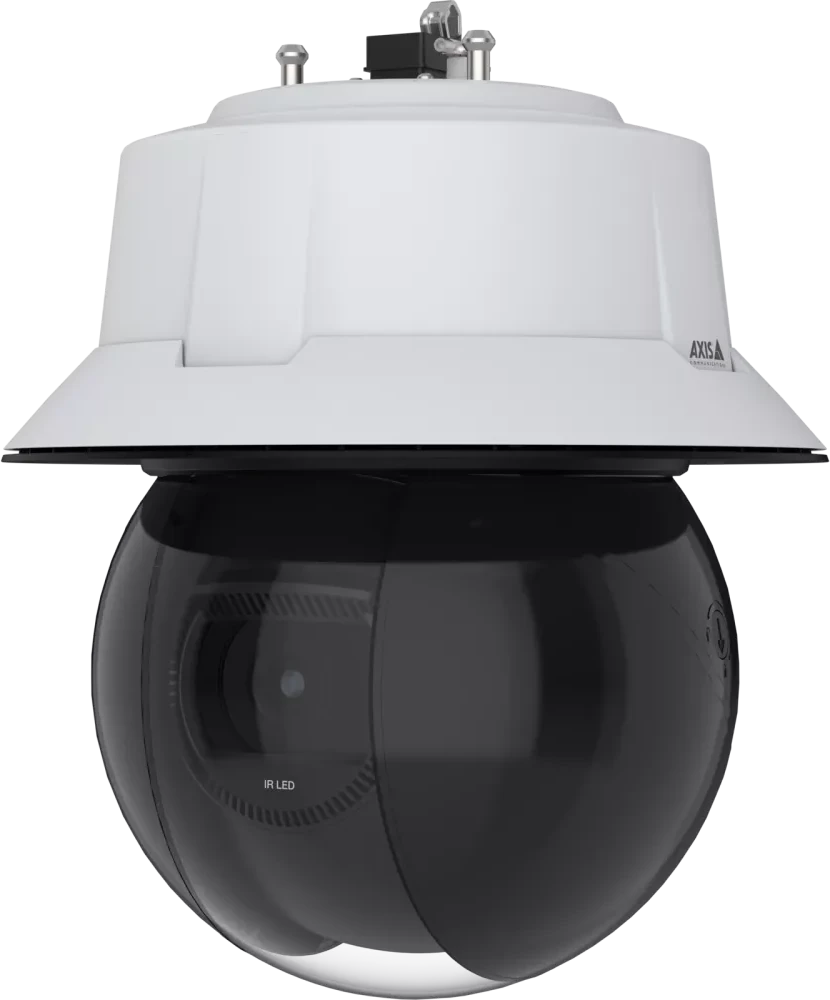
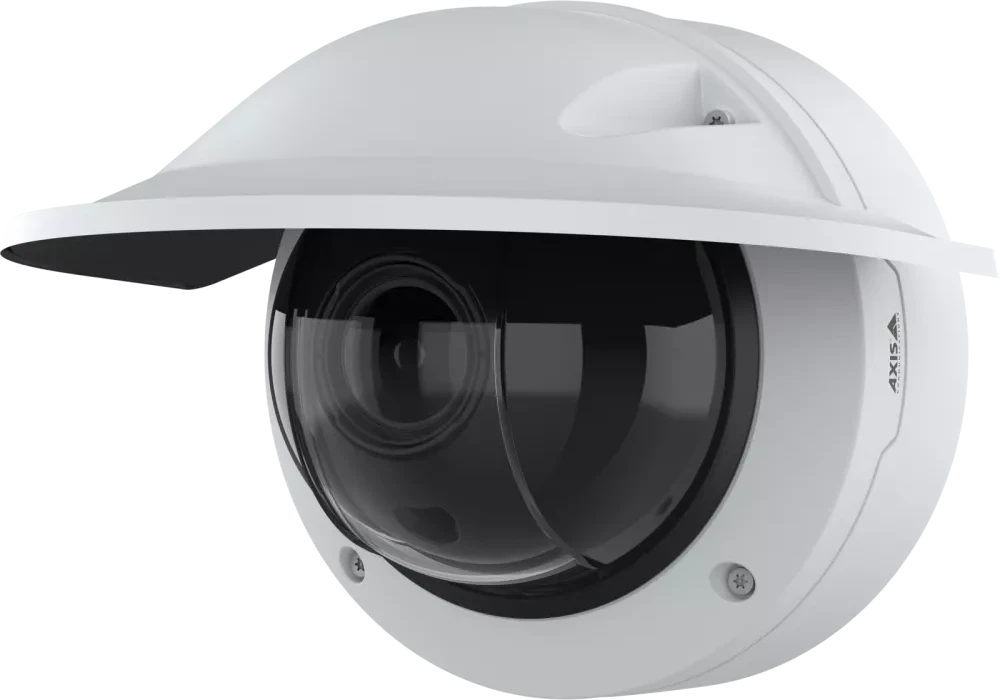
    Axis P1475-LE fixed bullet cameraAxis Q6325-LE pan, tilt and zoom cameraAxis fixed dome camera

    Three Detection Types on ARTPEC-9

    Detect puddles, spray, and visible vapor day or night. After dark, LLD works with artificial lighting or the camera’s near-infrared (NIR) illumination.
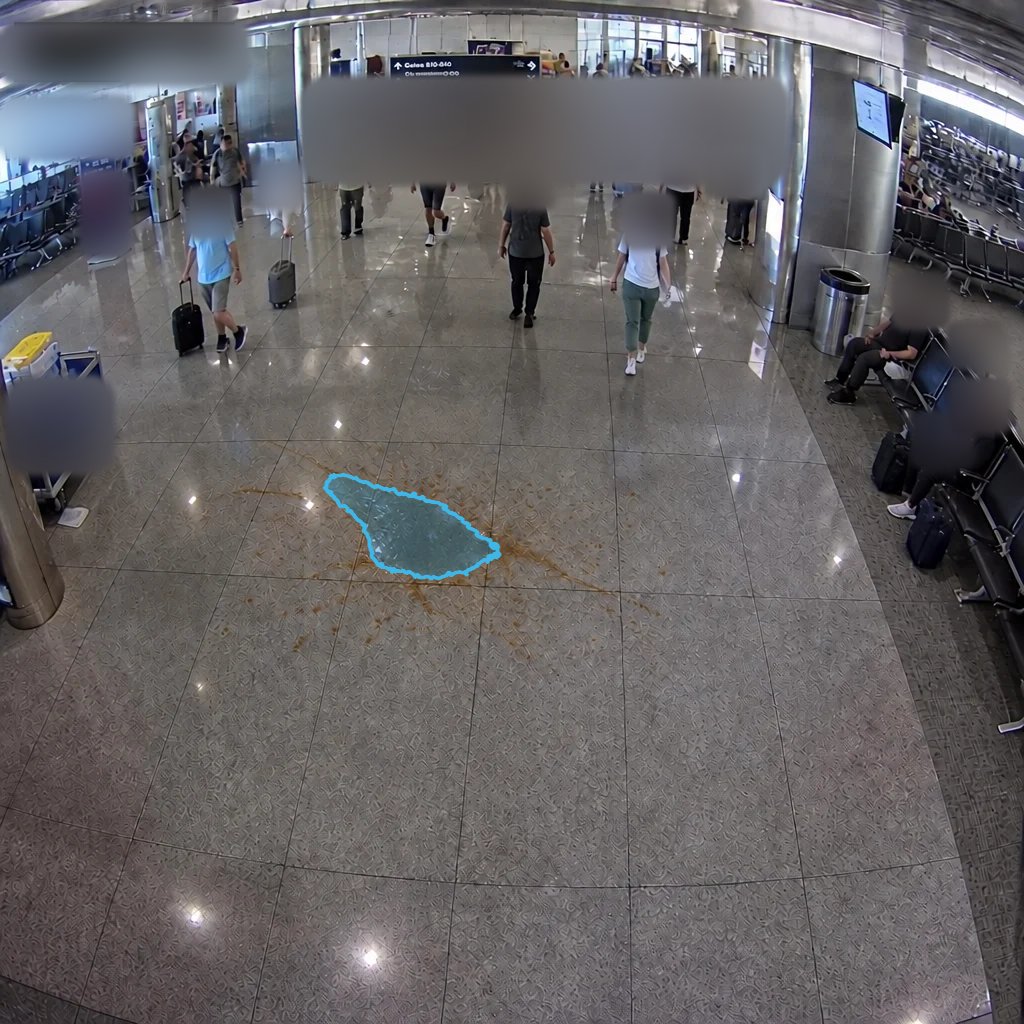
    Coffee spill in an airport terminal highlighted by a puddle detection overlay.
    Puddle
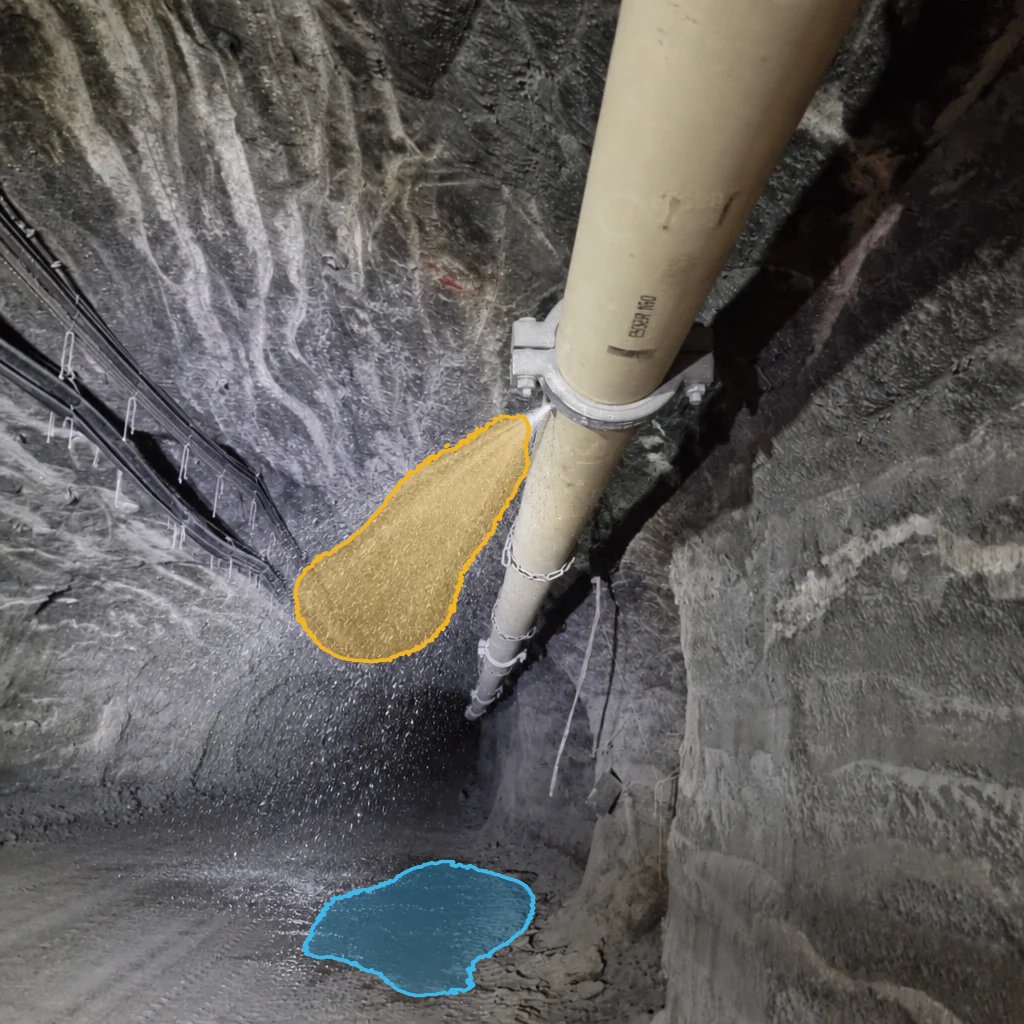
    Pipe spray leak at a mine highlighted by a detection overlay.
    Spray
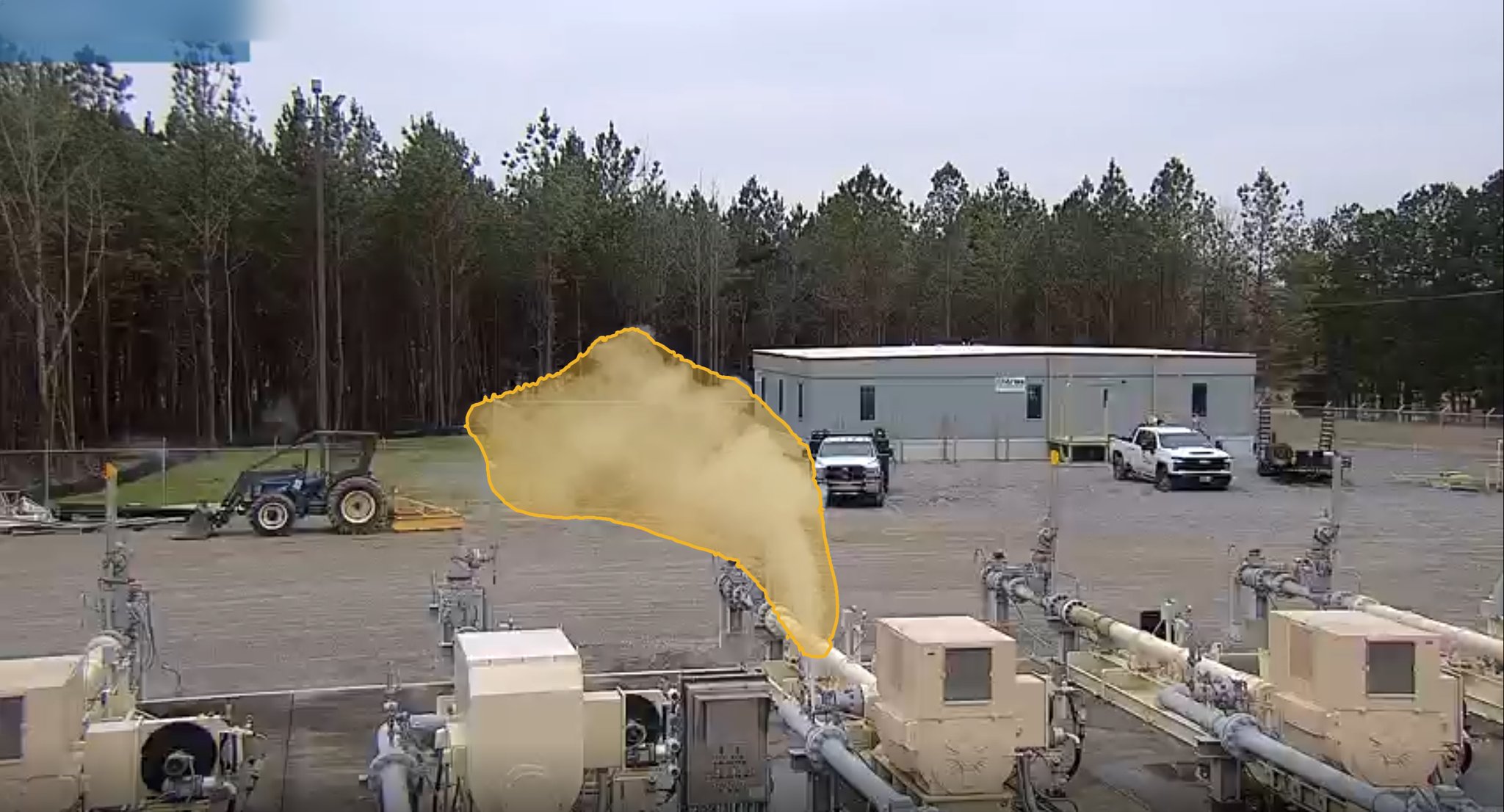
    Visible vapor at a gas compressor station highlighted by a detection overlay.
    Visible Vapor

    Puddle Accuracy

    True positive detection rate
    97.1%
    False positive rate
    0.8%

    Spray & Visible Vapor — Combined Accuracy

    True positive detection rate
    98.1%
    False positive rate
    3.7%

    Accuracy was evaluated with 9,147 previously unseen frames, without per-site training, before the alarm engine was applied. Spray and visible vapor share a combined benchmark.

    Read the Benchmark Methodology
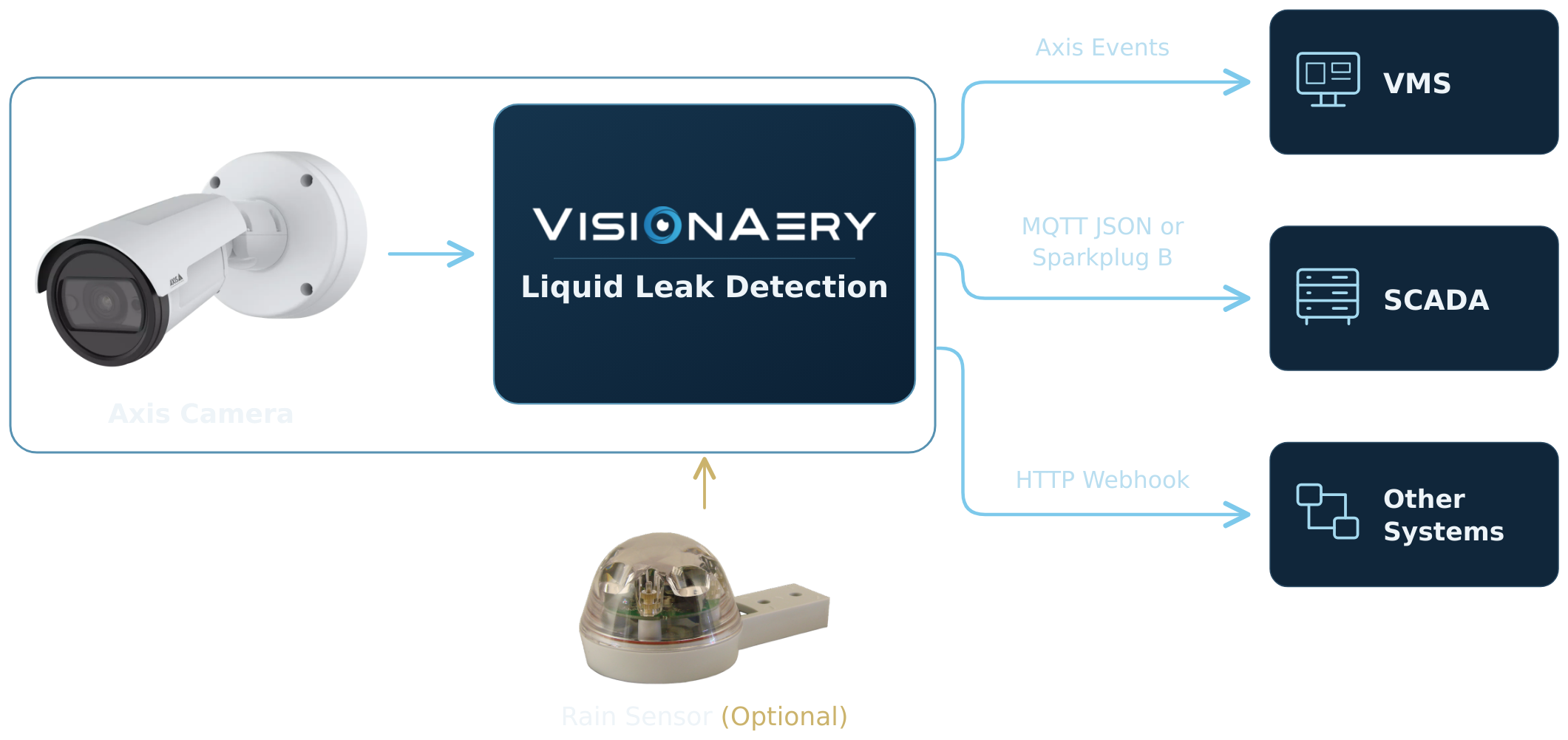
    Axis camera and VisionAery Liquid Leak Detection grouped together. An optional rain sensor feeds the camera and app. Axis Events connect to VMS, MQTT JSON or Sparkplug B connects to SCADA, and HTTP Webhooks connect to other systems.

    Platform Summary

    Turn your Axis ARTPEC-9 camera into on-site leak detection—without a separate server or cloud processing. One signed application detects puddles, spray, and visible vapor, day or night, and easily integrates data and alarms into your existing VMS, SCADA, or other platforms.

    Fit Your Site
    Use fixed views or PTZ presets and tours, with custom detection zones and sensitivity for each area.
    Connect Your Systems
    Send alarms to your VMS through Axis events, share data over MQTT, or trigger custom workflows with HTTP webhooks.
    Control Your Data
    Choose telemetry timing, optional snapshots, and payload identifiers. Add rain data to help reduce nuisance alarms.
    Start With a Free Trial
    Install on AXIS OS 12.11 or later and try all features for seven days. Choose annual or perpetual licensing when you’re ready.
    01

    Download the Signed LLD Application

    One File for Every Supported Camera

    The application auto-detects the camera model and adapts its UI to the camera’s capabilities.

    AXIS OS 12.11 or Later

    Check System → Maintenance for your firmware version. Update it first if it is older.

    Installs Like Any Axis App

    1. Open camera in browser
    2. Apps
    3. Add app
    4. Select .eap
    5. Start

    Updates Install Over the Top

    A newer version keeps your zones, settings and license.

    Never remove the app to update it.

    Nothing Else to Install

    That’s it! You’re ready to license the app and start detecting leaks 24/7.
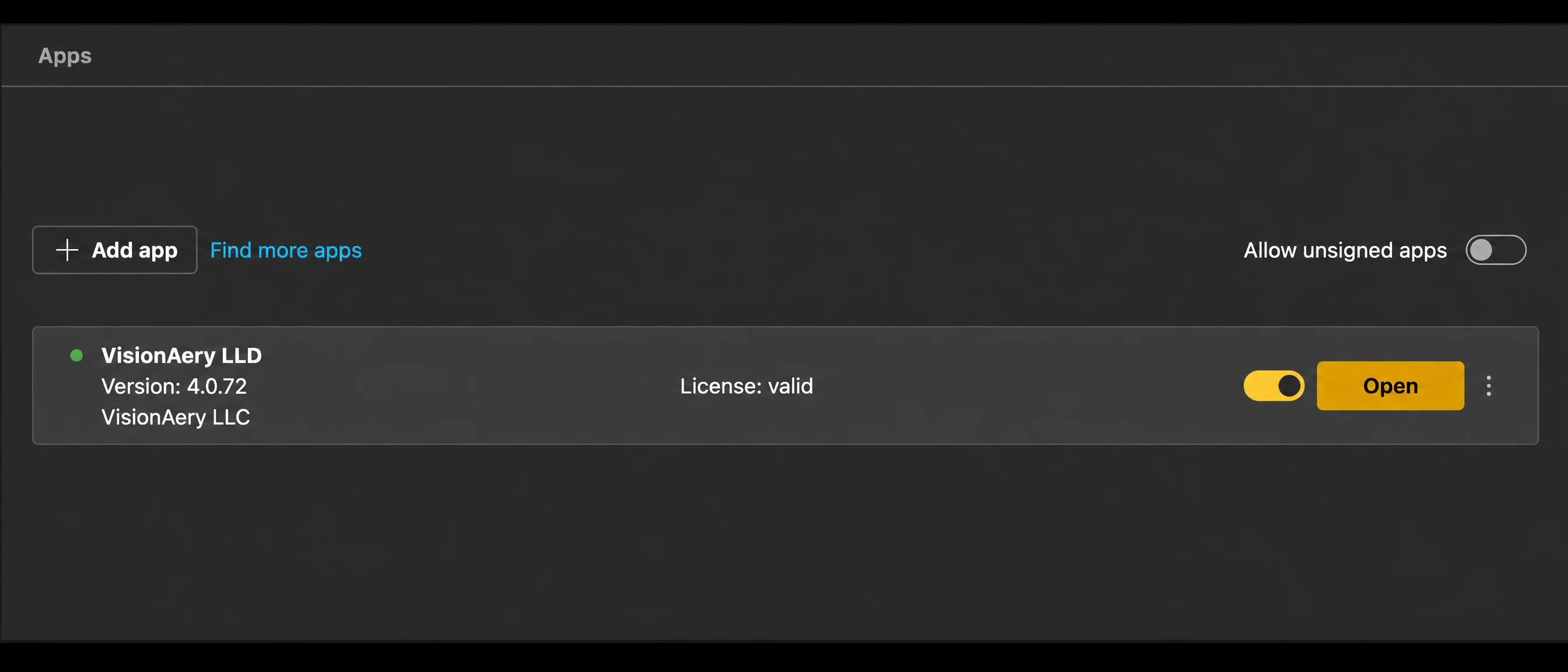
    Axis camera Apps page showing VisionAery LLD installed, a valid license, and the Open button.
    Install from the camera’s Apps page. Press Open to reach the app’s own settings page.
    02

    License the Application

    Try it free on your own camera for seven days. Then choose a yearly plan or buy it outright, with support if you want it.

    Seven-Day Trial
    Free · 7 days

    The full product with every integration. Draw zones, test in your environment, and verify integrations.

    • Every feature, no limits
    • Automatically redeem on the ACAP Portal
    • Longer trial granted upon request
    Annual Most Common
    $500 · per camera, per year

    Pay yearly and always run the current version. Updates and support are included while the subscription is active.

    • All updates included
    • Support included
    • Easy to renew with a new license key
    Perpetual
    $1,500 · per camera, once

    Own the license outright. Add an optional support plan for updates and help from the people who built it.

    • Never expires
    • Optional yearly support plan — $150/year
    • Updates with support plan

    How Licensing Works

    Trial License

    Redeem your seven-day trial automatically on the ACAP service portal using your camera’s serial number, or ask us directly. Longer trials are granted upon request.

    Issue a PO for License Codes

    Once you decide you love the Liquid Leak Detection application, send us a purchase order (PO) for annual or perpetual licenses for your desired number of applications.

    Redeem the License Codes for Keys

    Once you have the codes, you’re ready to redeem the keys to launch your application. Redeem on the ACAP service portal or request keys from VisionAery.

    Upload Keys to the LLD Application License Page

    Simply paste the key in the license area or upload the key file.
    Request a trial key Prices in USD.
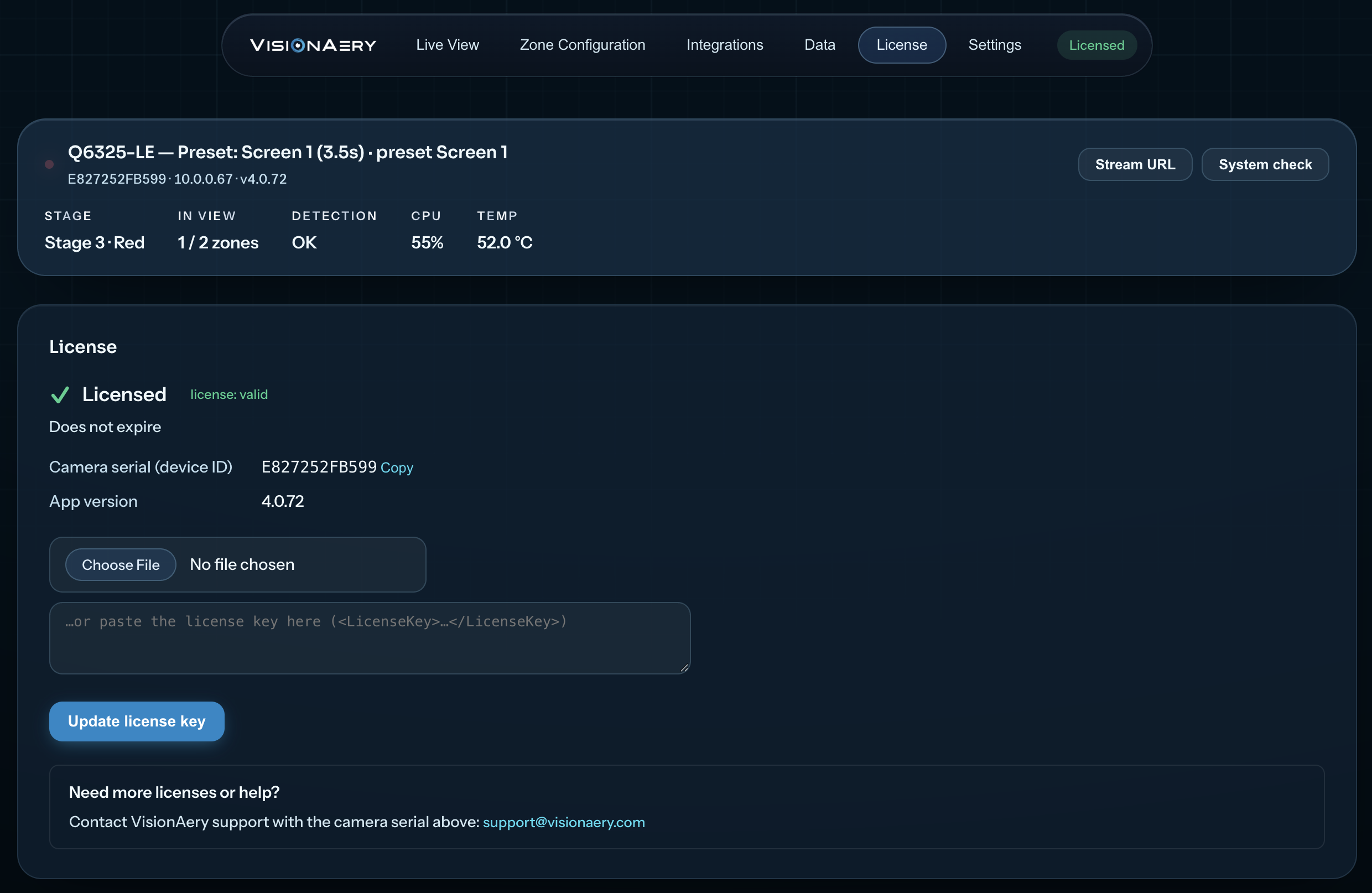
    VisionAery LLD License page showing licensed status, the camera serial, a key file upload, and a field for pasting a license key.
    Paste your license key or upload the key file on the License page, then select Update license key.
    03

    Set Up Zones

    Choose your camera views, define what matters in each scene, and tune detection to your environment.

    A · Camera Views

    Cover More of Your Site With One Camera

    Start with the views you want to monitor. Create presets and guard tours from the LLD application or the camera’s own interface.

    PTZ Cameras

    Save a preset for each area of interest, then create a guard tour to move between them.

    Fixed Cameras

    Keep a standard fixed view, or enable PTZ mode to move a view area within the camera’s field of view. Use digital zoom and PTZ controls to frame each area, save presets, and build guard tours—even on a fixed camera.

    More detail where it matters. A focused view area retains more pixel density on your area of interest, helping improve detection accuracy. Higher-resolution cameras make PTZ mode more effective.
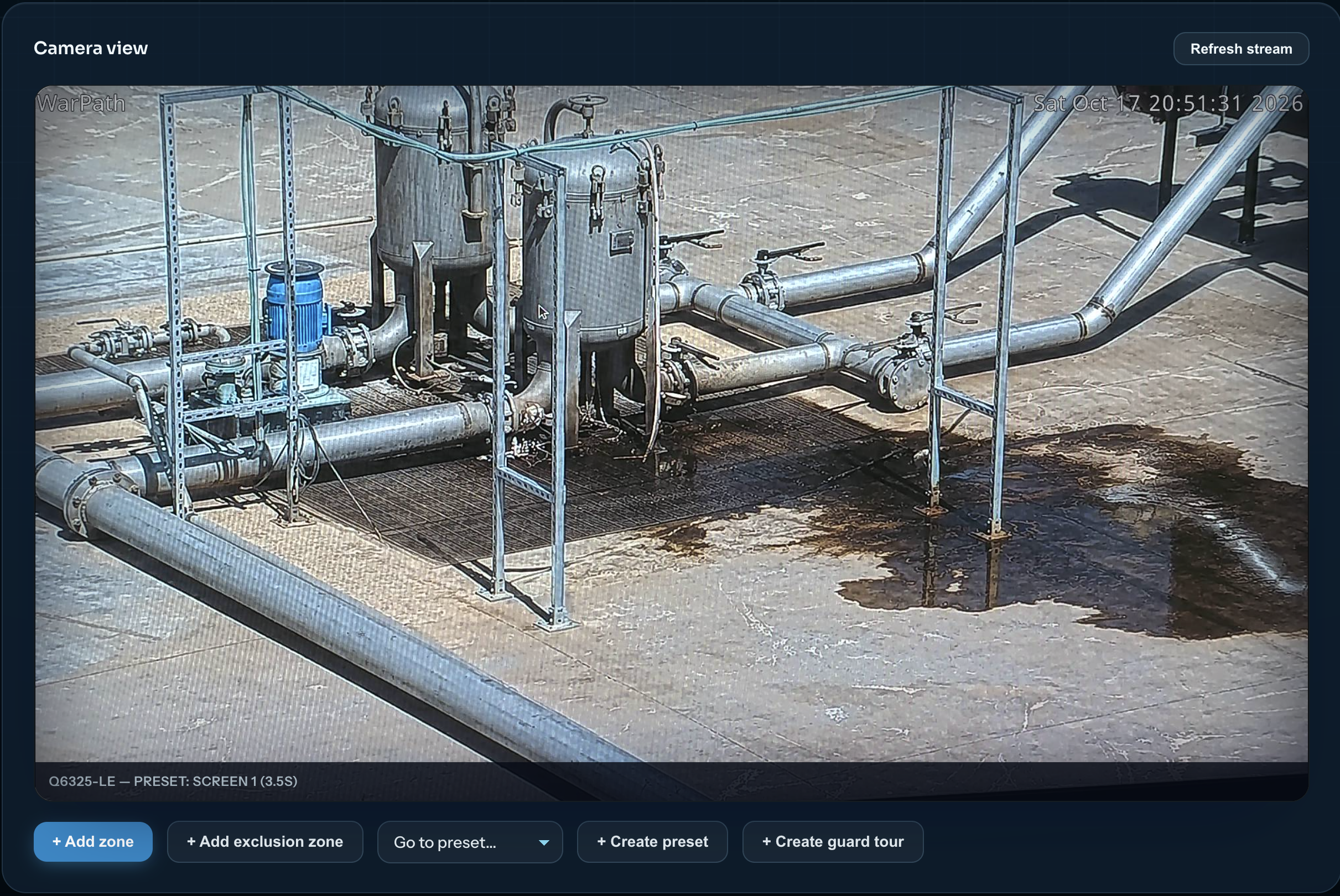
    LLD camera view with controls to select a preset, create a preset, and create a guard tour.
    PTZ Presets and Guard Tours — create and select camera views directly in LLD.
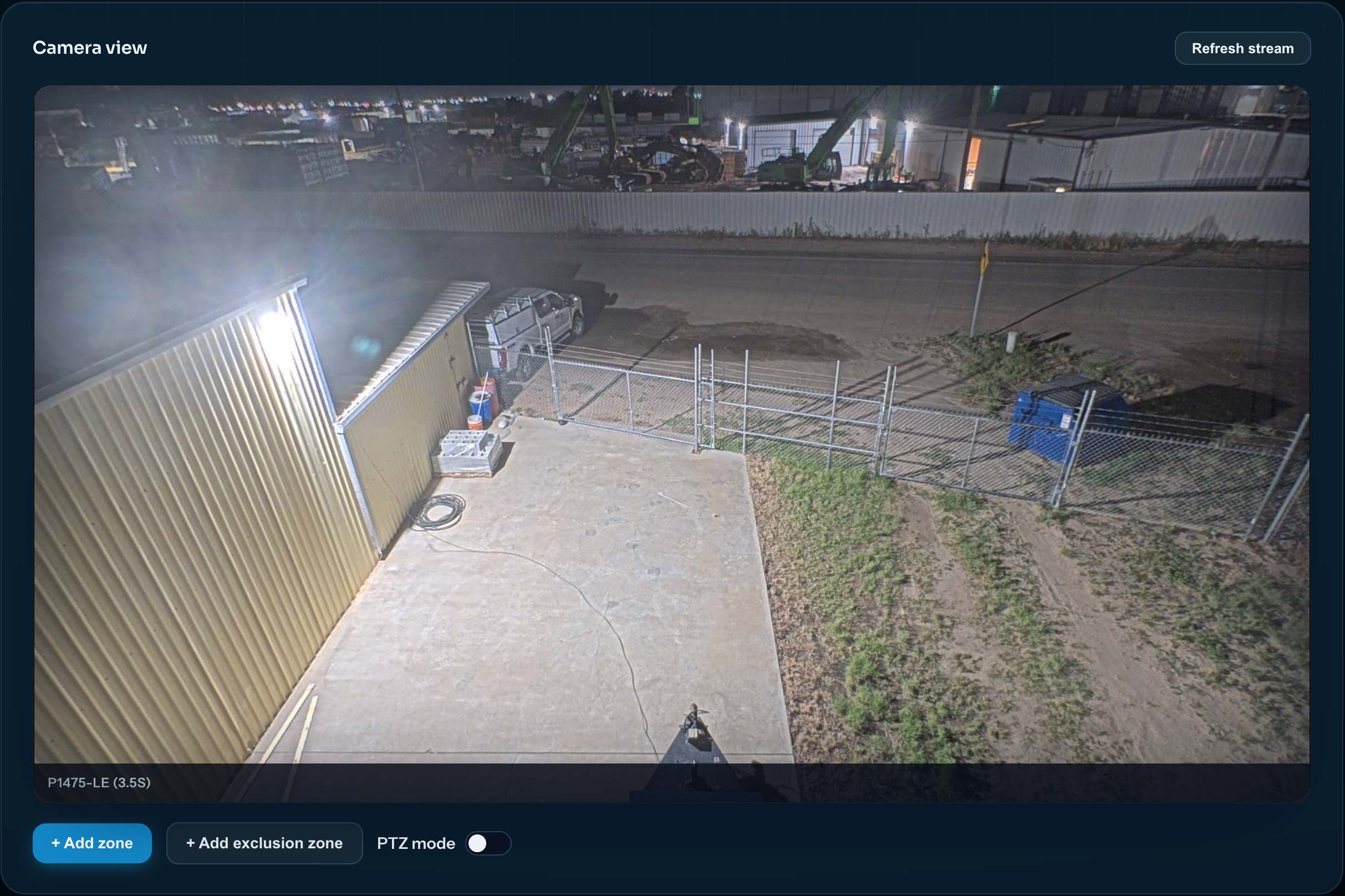
    LLD fixed-camera interface showing the camera view, Add zone and Add exclusion zone controls, and the PTZ mode toggle.
    Fixed-Camera View — add detection zones or enable PTZ mode directly in LLD.
    B · Detection Zones

    Watch What Matters. Exclude What Doesn’t.

    Draw areas of interest to define where LLD should look for leaks, and exclusion zones to leave unwanted areas out of detection.

    Zones That Follow Your Presets

    Bind both interest and exclusion zones to individual presets. Each zone activates only when its preset is in view, so one camera can precisely monitor multiple areas across your site.

    Independent Monitoring for Each Area

    Add as many interest and exclusion zones per preset as you need. Each interest zone has its own alarms, telemetry, and alarm-progression settings.
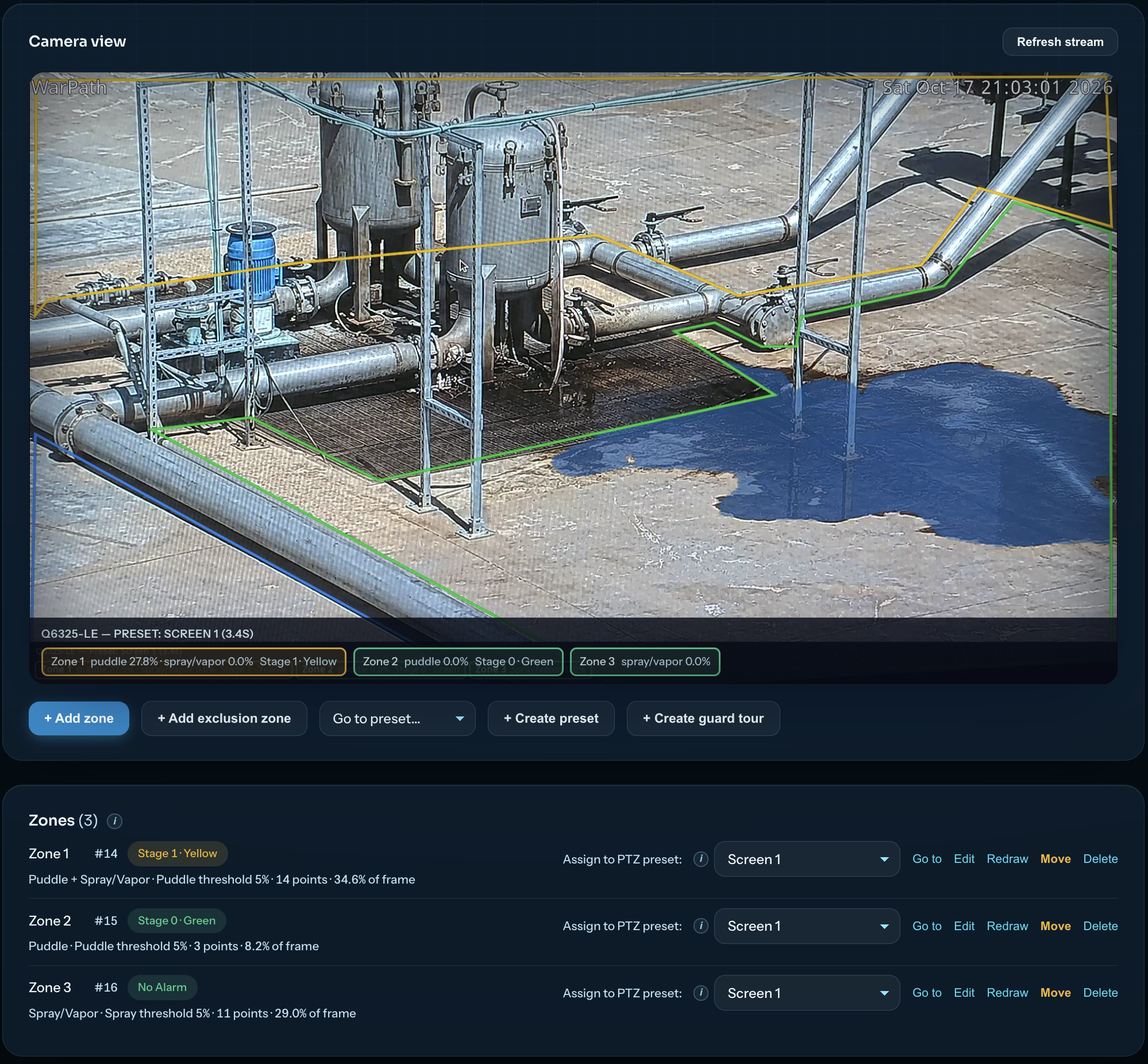
    LLD Zone Configuration showing outlined detection areas, a blue puddle overlay, individual zone alarm states, and PTZ preset assignments.
    Detection Zones — define monitoring areas, assign them to presets, and see each zone’s alarm status.
    C · Zone Settings

    Balance Detection Speed and Alarm Confidence

    Name each area of interest and choose puddle detection, spray detection, or both. Then select the sensitivity that fits the scene and your operational needs.

    High
    Your best chance of quick detection, with a higher chance of false and nuisance alarms.
    Average
    A balance between detection speed and reducing false and nuisance alarms.
    Low
    Takes longer to detect, but prioritizes alarm accuracy with the lowest false and nuisance alarm rates.

    Need more control? Open Advanced to customize the settings for your application.

    Check your monitored areas after dark, too: artificial lighting or the camera’s NIR illumination should keep the scene clearly visible.
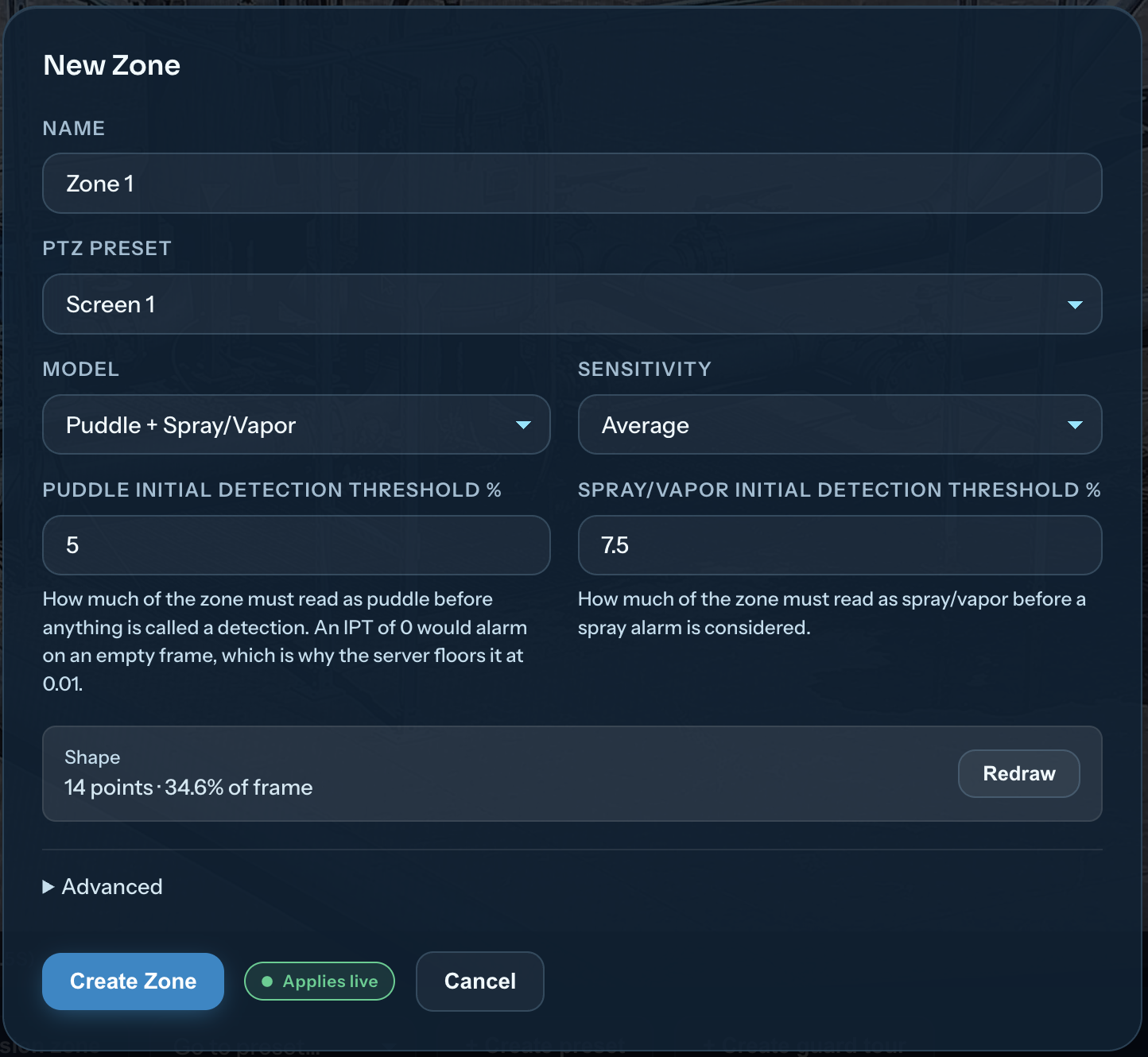
    LLD New Zone settings showing the zone name, PTZ preset, detection model, sensitivity, detection thresholds, and Advanced settings.
    Zone Settings — name your area, choose a detection model and sensitivity, or open Advanced for more control.
    04

    Set Up Integrations

    A · Data Integrations

    Bring LLD Into the Systems You Already Use

    Send alarms to your VMS, connect telemetry to SCADA, or build a custom workflow with three prebuilt data integrations.

    Axis Event Engine · VMS Integration

    Bring LLD alarms into your existing video management system through the Axis event engine. These stateless alarms work with VMS platforms that support Axis event-engine integration.

    • Alarm - All Alarms
    • Alarm - All Puddle Alarms
    • Alarm - All Spray / Vapor Alarms
    • Alarm - Initial Puddle Alarm
    • Alarm - Puddle Growth Alarm

    Thoroughly tested with Genetec, Milestone, AXIS Camera Station, and Network Optix.
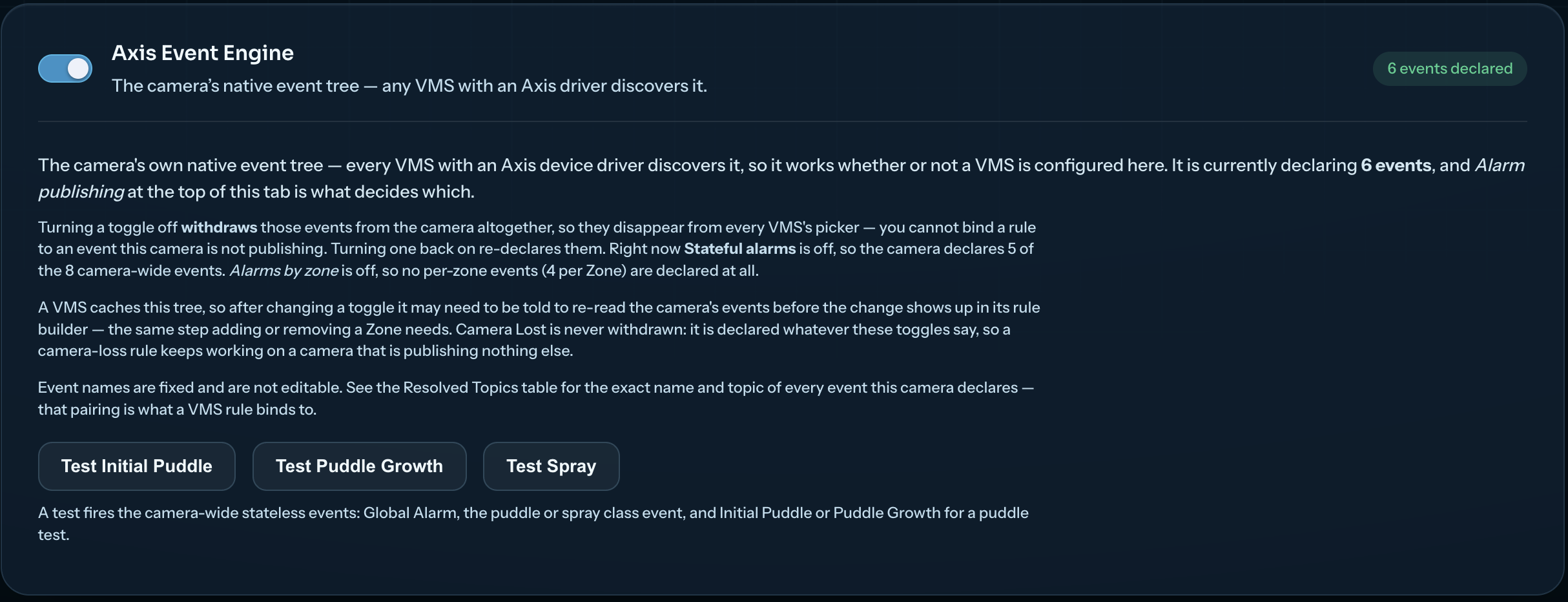
    LLD Axis Event Engine settings with event publishing enabled and test buttons for initial puddle, puddle growth, and spray alarms.
    Axis Event Engine — publish and test native camera alarms.

    Embedded MQTT Broker · Alarms and Telemetry

    Connect alarm and telemetry data to your SCADA or other data platform through the embedded MQTT broker. Send payloads in standard JSON, Sparkplug B, or both to suit your receiving system.

    Our MQTT payload and integration were built with MQTT co-inventor Arlen Nipper of Cirrus Link, who personally built our direct integration with Inductive Automation’s Ignition SCADA system.

    A guide is also included for converting the MQTT payload into Modbus or OPC UA for systems that use those protocols.
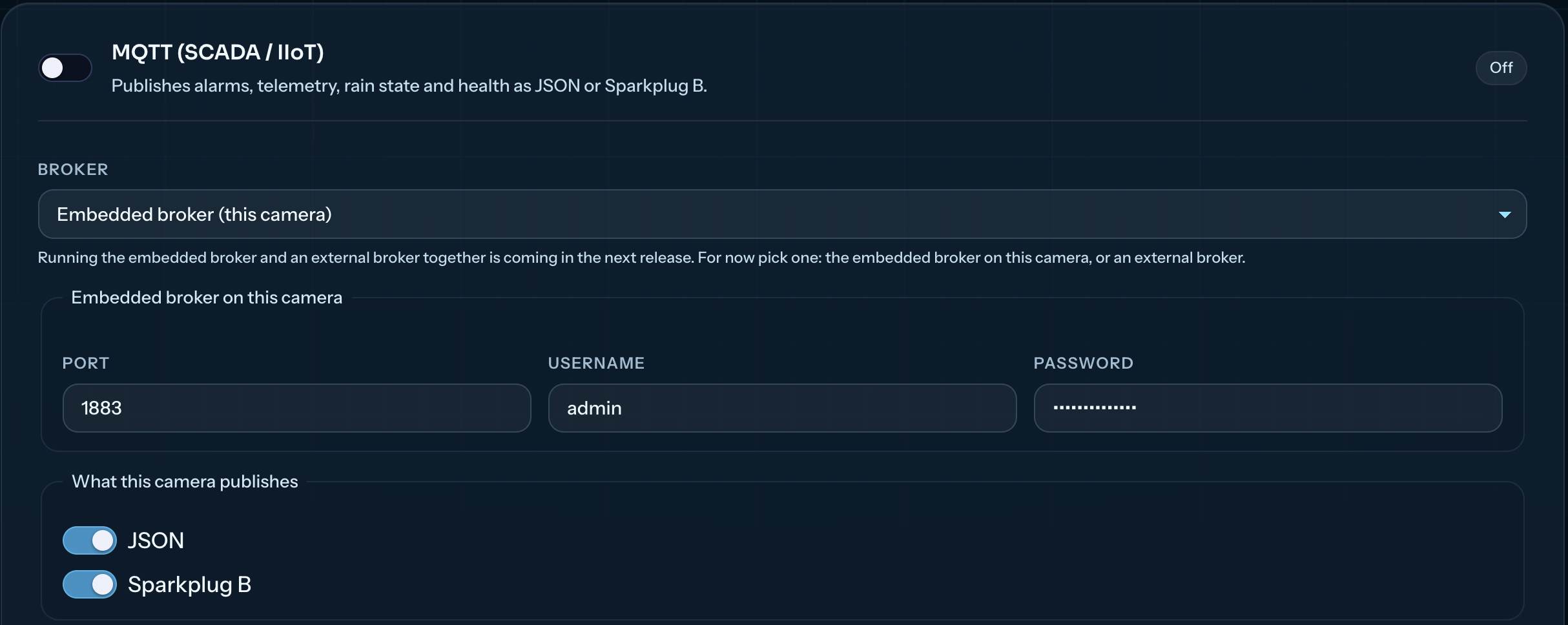
    LLD MQTT settings showing the embedded broker selection and JSON and Sparkplug B payload options.
    MQTT — configure the broker and select JSON, Sparkplug B, or both.

    HTTP Webhooks · Custom Workflows

    Connect LLD to systems beyond VMS and SCADA. Send an alarm to a webhook receiver that triggers an email, sends an SMS, or archives snapshots and alarm history in an FTP folder.

    LLD delivers the webhook; your receiving service handles the notification or file storage.
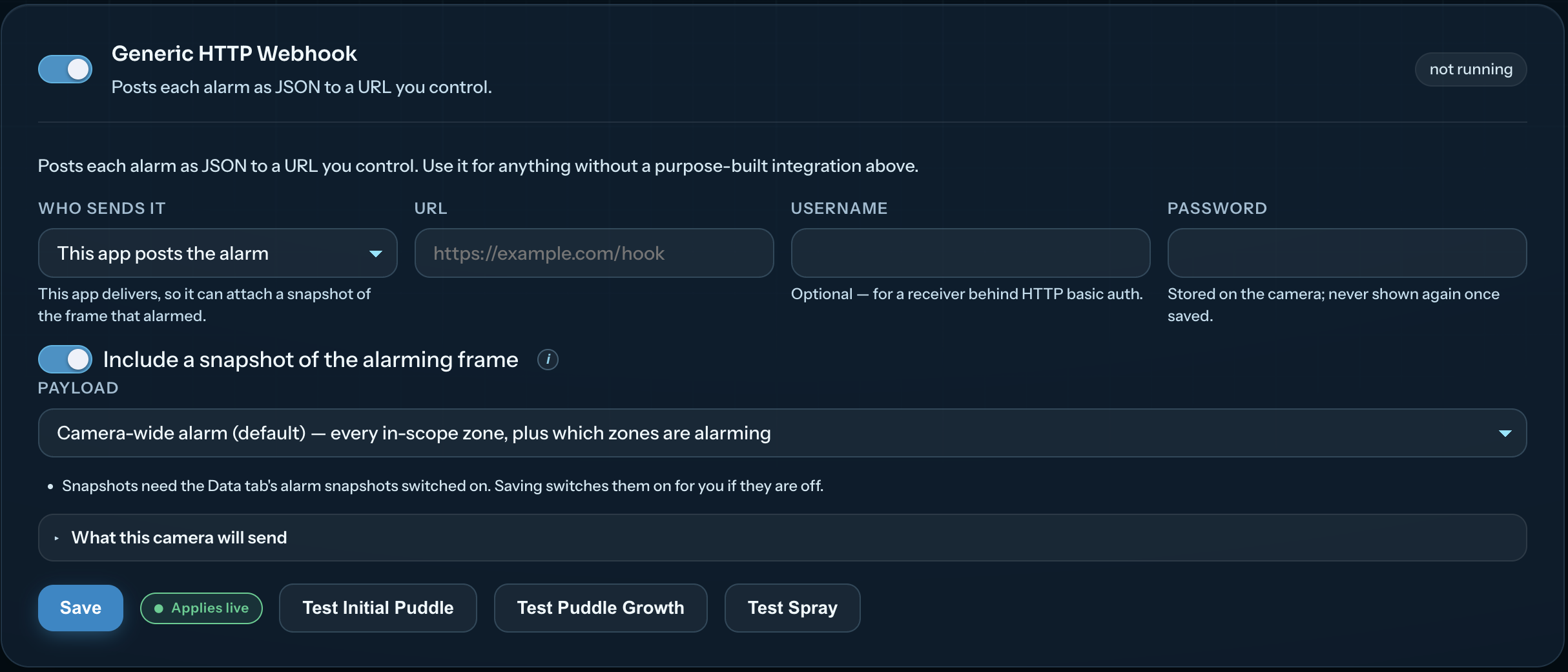
    LLD HTTP webhook settings showing the destination URL, snapshot option, payload selection, and alarm test buttons.
    HTTP Webhooks — send alarm payloads and snapshots to your receiving system.
    B · Rain Sensor Integration

    Use Rain Data to Reduce Nuisance Alarms

    Bring rain data into LLD through one of three connections, so the application can account for wet weather when managing alarms.

    Camera I/O · Recommended

    Connect a rain sensor directly to the camera’s I/O ports when available. This is the preferred connection for local rain sensing.

    External I/O Module

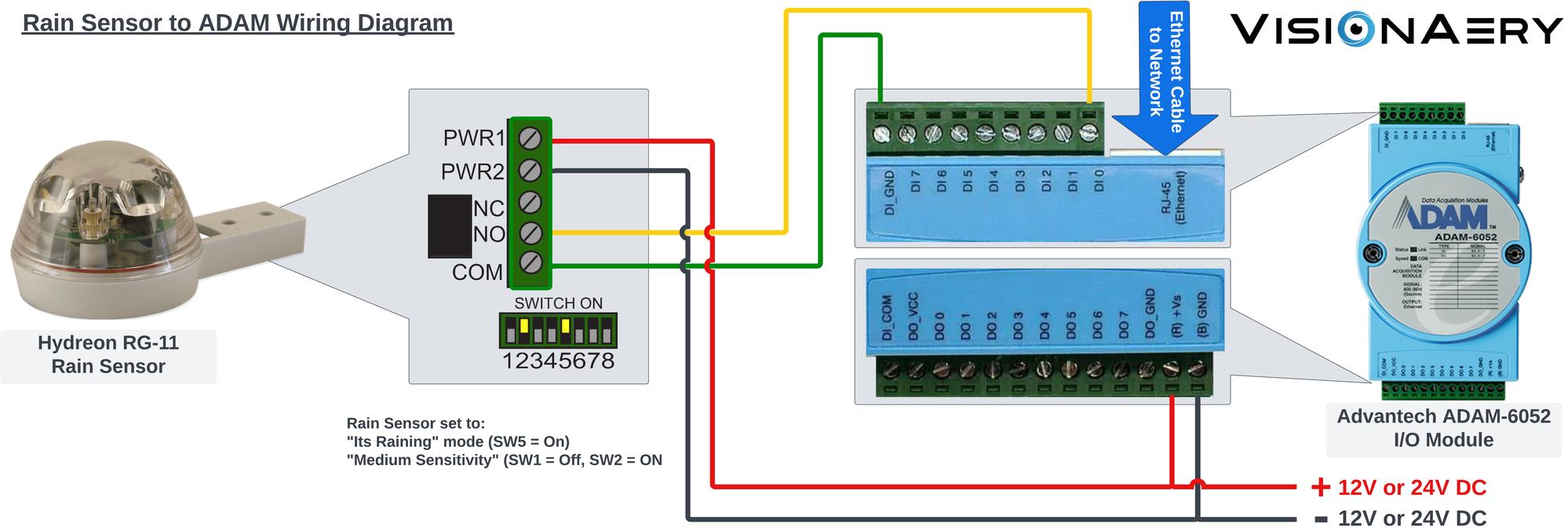
    Use an I/O module, such as an Advantech ADAM module, to bring a physical rain sensor’s data into the application.

    Weather Service API

    With internet access from the camera, connect to a web-based weather service. Use weather data for the site’s coordinates to control the application’s rain function.
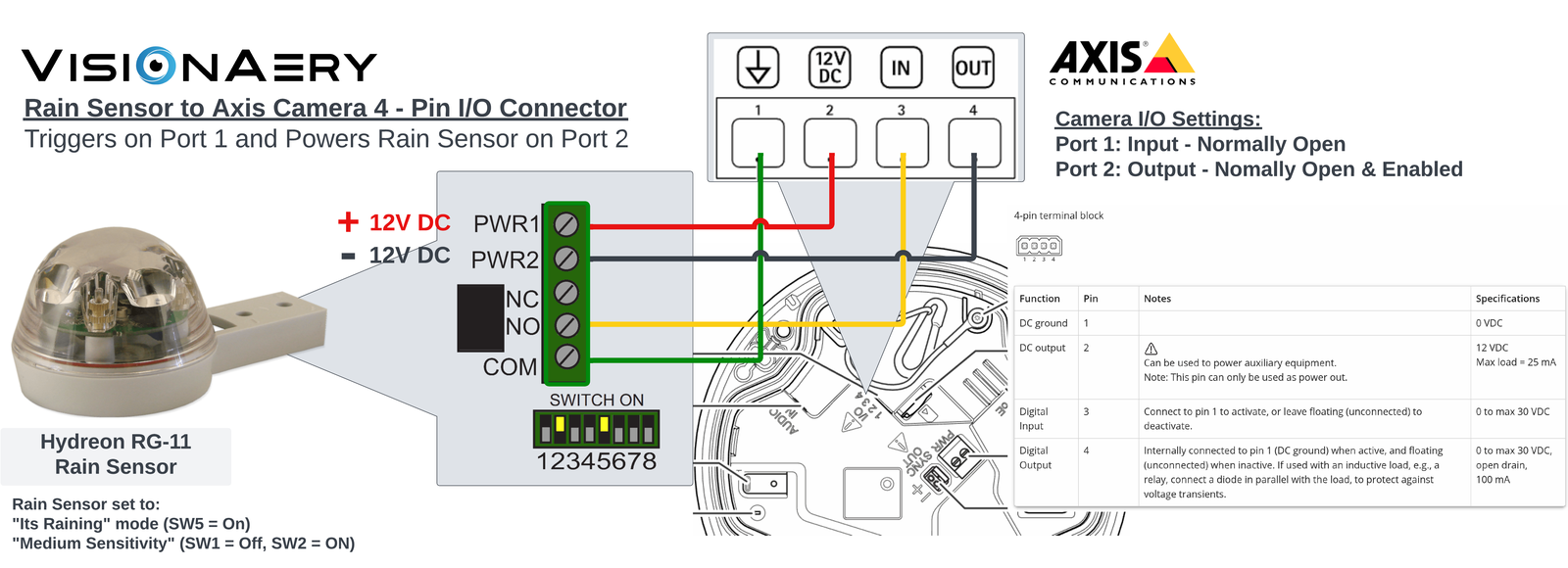
    Wiring diagram for a Hydreon RG-11 rain sensor connected to an Axis camera four-pin I/O connector.
    Rain Sensor to Camera I/O
    Wiring diagram for a Hydreon RG-11 rain sensor connected through an Advantech ADAM-6052 I/O module.
    Rain Sensor to Advantech ADAM
    05

    Data Shaping

    Shape LLD data to fit your existing systems—from how often it arrives to the visual context it carries.

    Set Your Telemetry Cadence

    Choose how often LLD sends telemetry updates to match your monitoring needs.

    Include Optional Snapshots

    Choose whether to include a Base64-encoded snapshot of the camera’s live view in your data payloads, giving your receiving systems visual context alongside the data.

    Customize Topics and IDs

    Edit payload topics and identifiers to fit the naming conventions your systems already use.

    Pre-Map Your Data

    Use the available payload information to map LLD data into the right fields in your receiving systems.

    Review Alarm History

    See previous alarms in the application to review what happened and when.

    On your site. In your systems.

    Start Detecting Leaks on Your Axis Camera